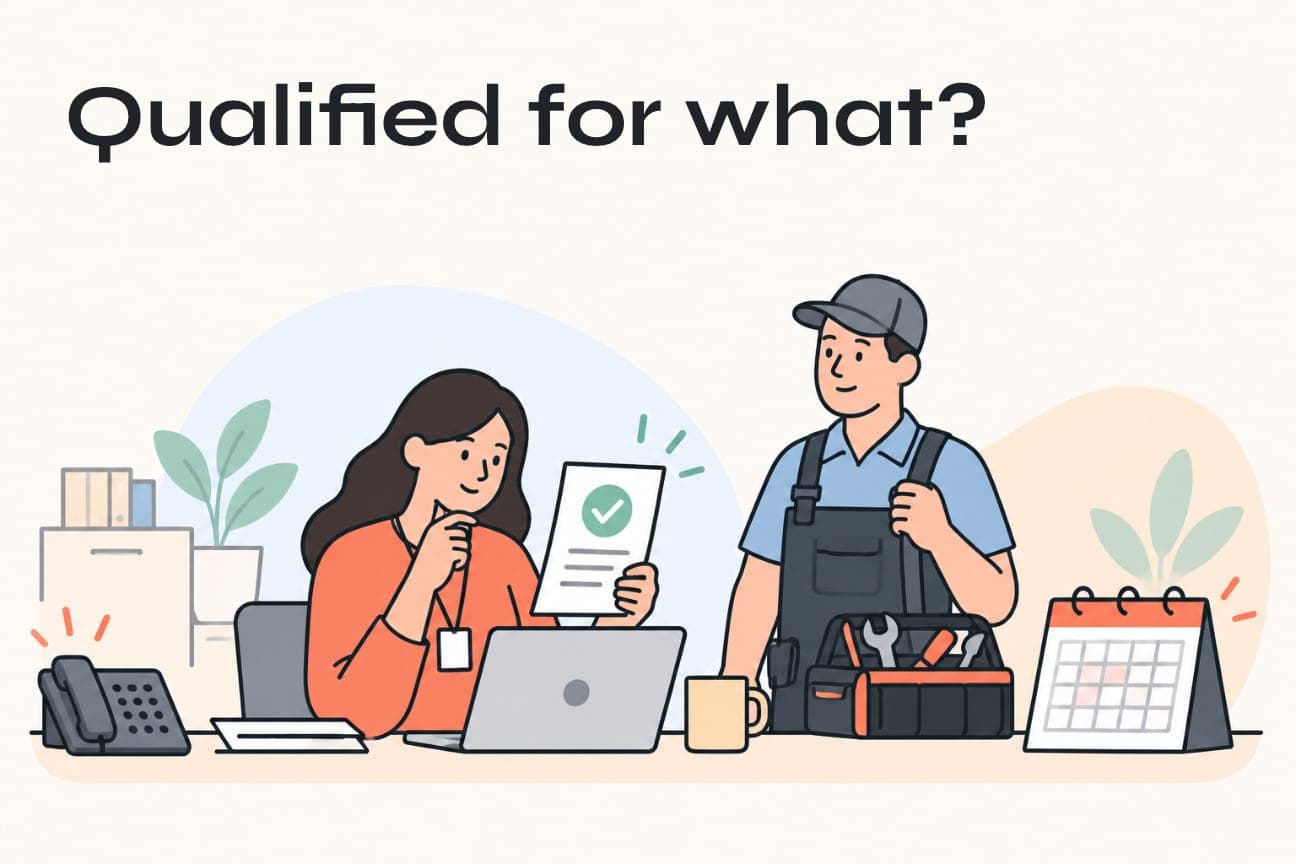
Google Ads lead scoring can help you sort enquiries by the answers people give on your form. For a local service business, we recommend starting with one useful question: does this person want the kind of work this campaign is meant to bring in? Use that answer to guide the next conversation, then track which enquiries become suitable jobs and bookings.
Search Engine Roundtable reported qualifying-answer controls in Google Ads lead forms on October 16. You can mark certain answers as qualifying, which gives your team a starting point when a lead arrives. The worthwhile part is deciding what that answer should mean for your business.
If your office is spending time sorting installation requests from repairs, a better question could make that first call easier. Here is how we would approach it.
What a qualified label tells you
Google's qualifying-response guidance describes a multiple-choice question with selected qualifying answers. Matching submissions receive a qualified lead label, with a lead stage available in the data output. Google currently documents this capability for Search campaigns only.
The label tells you which answer someone selected. Your team still needs to find out what they need, whether you can help and whether they want to book. We recommend keeping those stages separate so your advertising report and your office are talking about the same thing.
| Stage | What you know | What happens next |
|---|---|---|
| Answer qualified | The person selected an answer that matches your form rule | Ask about the actual job |
| Team confirmed | Your team checked that the request fits the work you take on | Agree on the next step with the customer |
| Booked | An appointment is confirmed | Follow through on the work and payment |
For example, agree whether “qualified” means “selected installation” or “spoke to us and looks like a suitable job.” Either term can be useful. Mixing them makes it hard to tell what your ads are delivering.
Ask a question that helps you handle the enquiry
Start with the service you want this campaign to generate. Sit down with the person answering calls or forms and finish this sentence together:
For this campaign, an answer qualifies when it indicates a request for ______. We still need to ask about ______ before deciding whether the job fits.
We would usually favour a question such as “Which service are you looking for?” over “Are you interested in our services?” The first helps your team decide what to do next. The second tells you very little beyond the fact that someone filled in a form.
For a hypothetical heat-pump installation campaign, the choices could look like this:
| Answer | How the form treats it | Your team's next step |
|---|---|---|
| Heat-pump installation | Qualifying for this installation campaign | Ask about the work and appointment needs |
| Repair or maintenance | Outside this campaign's installation rule | See whether your repair team can help |
| Not sure yet | Installation intent is still unclear | Help the customer explain what they need |
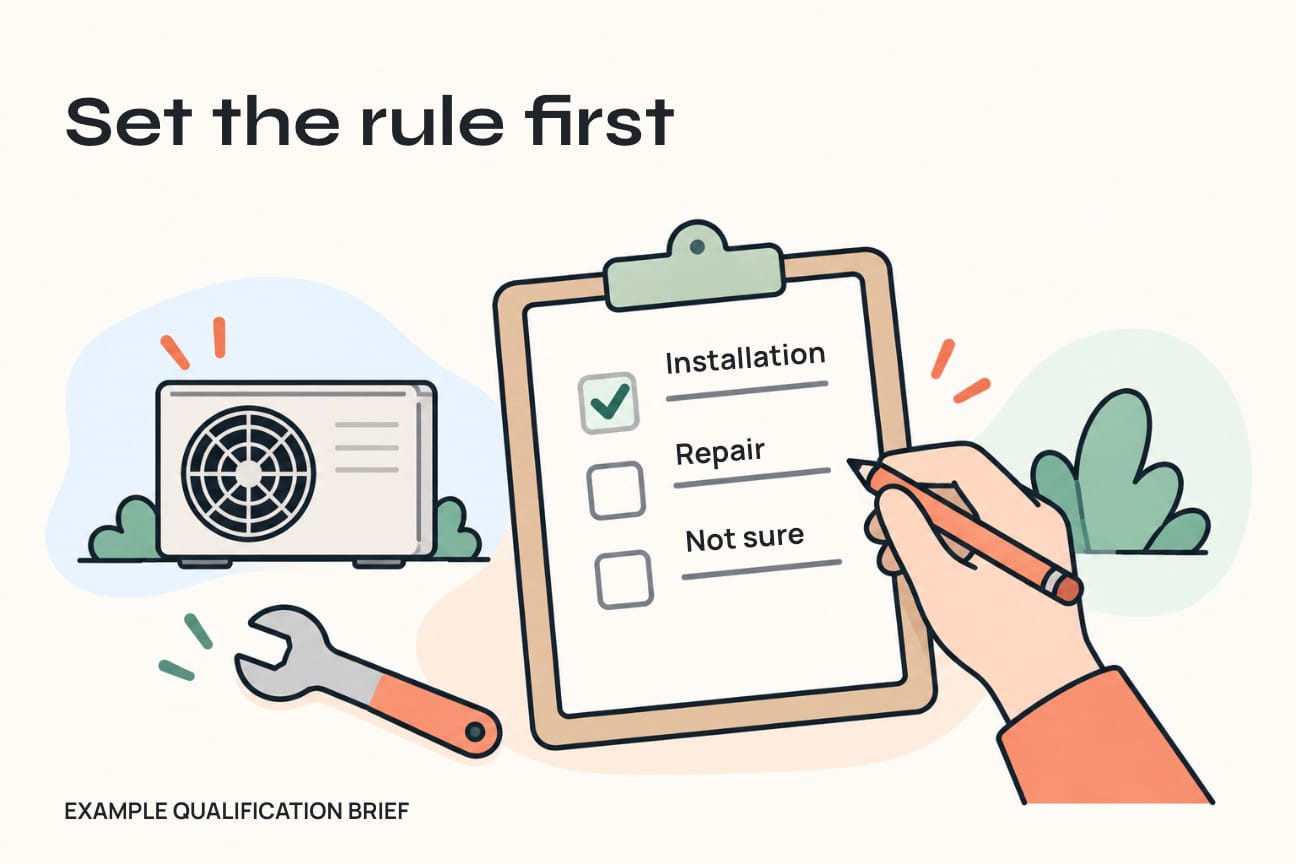
A repair enquiry might still be good business. Someone who chooses “not sure” may simply need help with the terminology. Keep those requests available and give the team a sensible next step for each answer.
Mark the answers that reflect the work you want this campaign to attract. Selecting every answer makes the qualified rate look better without helping anyone handle the leads.
Keep a short note beside the form
Write down which answers qualify, who agreed to them and the date of any change. Include what to do with an unclear request. A short note is enough when one service question solves the problem.
Keep the form easy to complete, too. Ask what your team needs to begin a useful conversation. Detailed property information and a full job specification can usually wait until the quotation process.
Set up one form and check what arrives
Before editing, check that your account and campaign are eligible. Google's lead-form requirements include policy compliance, an eligible business category and a linked privacy policy. Some formats have extra conditions, so the setting shown in a news screenshot may not be available in every account.
Follow Google's lead-form creation and editing instructions to open the asset. Add your question and answers, choose the qualifying responses and check the submission message. Qualifying questions must be required. Some edits can also trigger another policy review, so check the asset's status after saving.
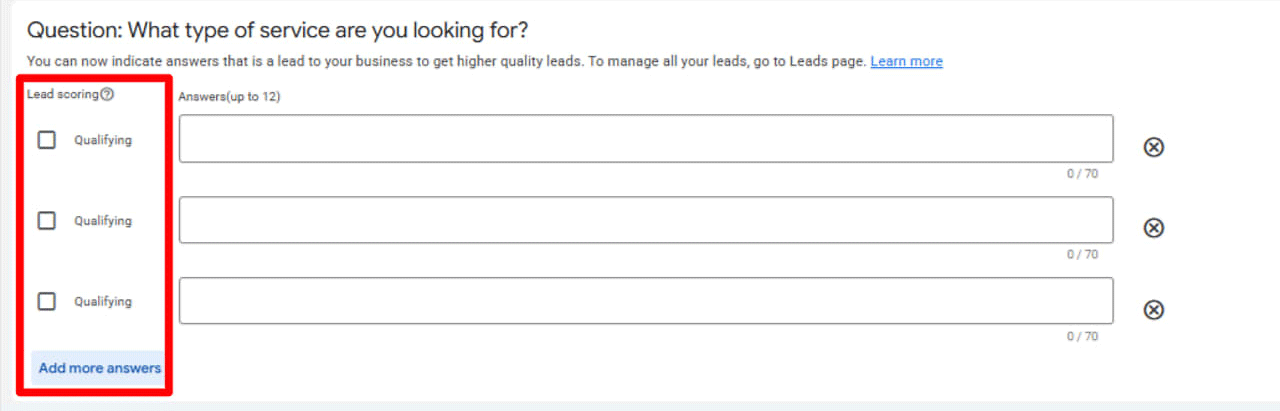
We recommend trying one form before rolling the approach out to more campaigns. Use an authorised preview or the test process available in your setup, rather than repeatedly clicking your own paid ads.
Check the things your office will rely on:
- A qualifying answer arrives with the right answer and lead stage.
- A repair or uncertain request stays visible for follow-up.
- The person handling it can find the enquiry and knows the next step.
- If delivery fails, someone notices and can recover the lead.
Look at the fields that actually arrive in your system. Contact details can come through successfully while the answer or lead stage is missing. Catching that now saves the office from having to guess later.
Make the next conversation easier for your team
Keep the original form answer and your team's decision in separate fields in your customer relationship management system, or CRM. You can then see both what the customer selected and what you learned when you spoke to them.
For each enquiry, keep a lead reference, the campaign or asset reference when available, the answer, Google's stage, the version of your question, the person responsible, the result of the conversation and the next action. Customer contact details belong in the system your team uses to handle enquiries, rather than in a widely shared marketing report.
Google's lead-form best practices recommend using a supported CRM integration for prompt follow-up. Automation is useful here when it gives the office the information it needs and makes a missing delivery easy to spot.
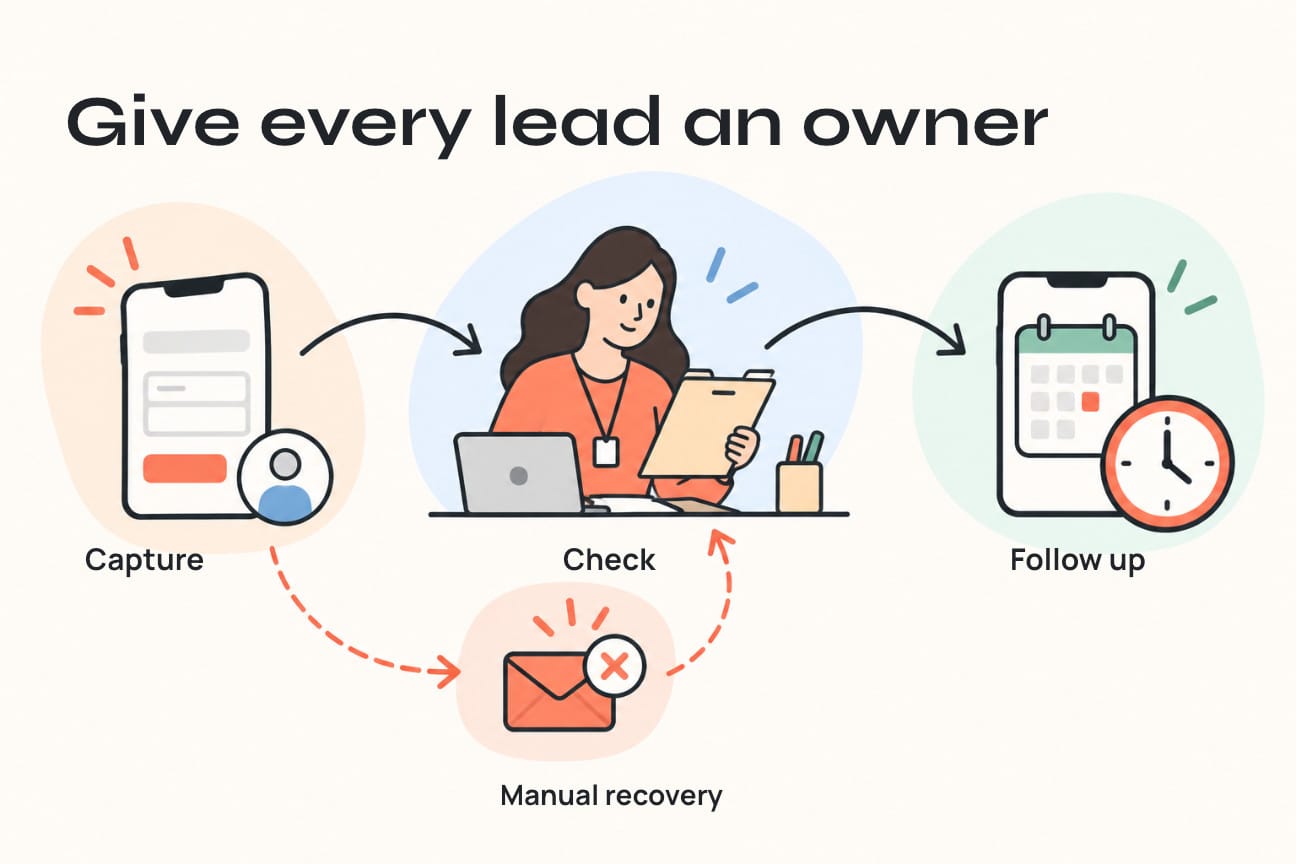
A practical follow-up routine
When a lead arrives, create or update the right customer record without overwriting someone else's enquiry. Keep the answer and stage, assign a person to follow up and make the next action clear.
That person can confirm the requested service and any conditions that affect the job before promising an appointment. Choose a response time that your team can manage during staffed hours, with someone to cover when the usual owner is away.
If an answer is missing, a reference is duplicated or delivery fails, put it where the office will notice it. Recover the original enquiry through an authorised export or source view, then follow up with the customer. If the integration cannot confirm delivery, keep a manual check until it can.
Compare received enquiries with the source over the same period, especially after changing a form or field. An automated acknowledgement is useful, but someone still needs to take responsibility for the conversation.
Use a small batch to see whether the question helps
Here is an illustrative example, rather than a JC Labs client result or a Google benchmark.
Suppose 12 enquiries selected the installation answer. After speaking with the customers, your team finds:
- Eight need the installation service you intended to promote.
- Two need a different service.
- Two are still waiting for clarification.
- Four of the eight suitable enquiries have booked an appointment.
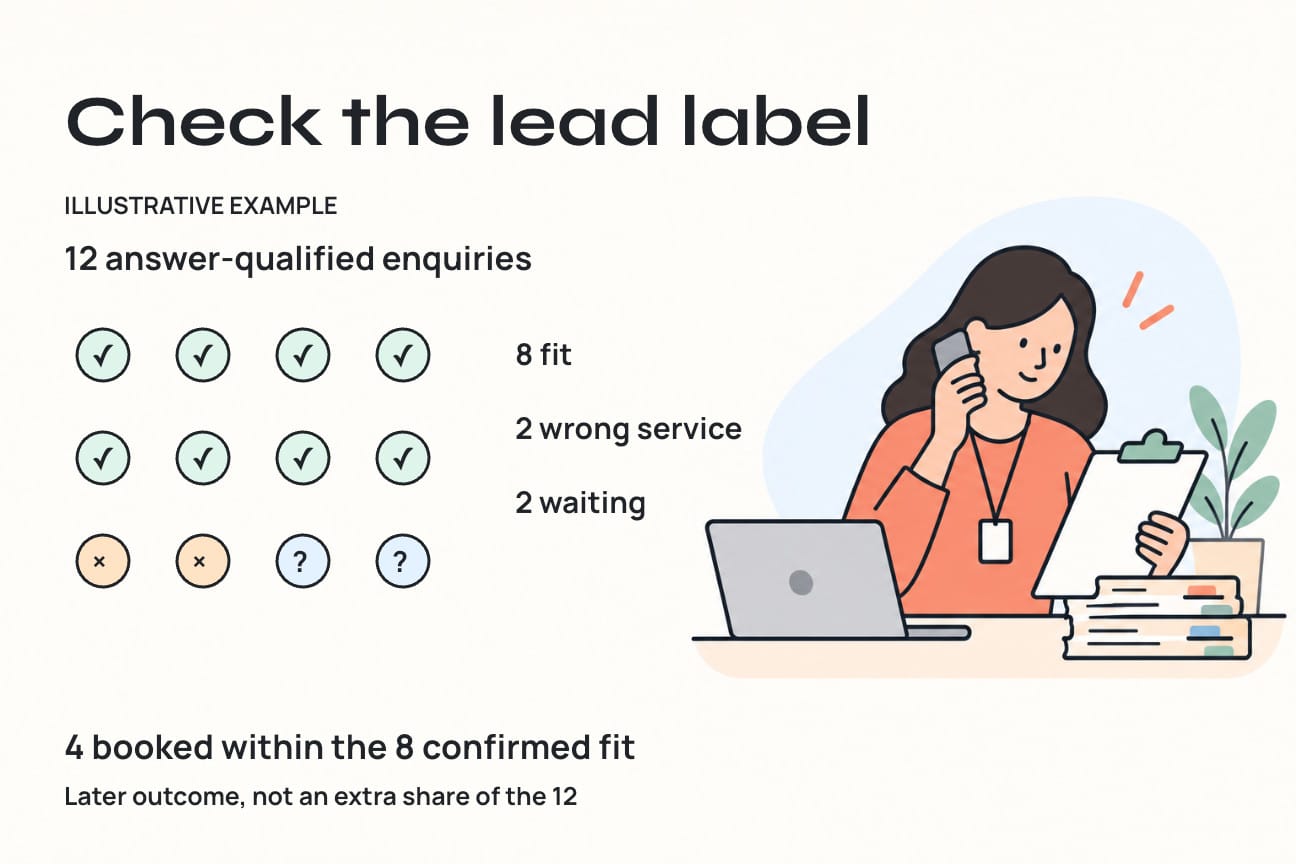
Eight out of 12, about 66.7%, turned out to fit the service. Two out of 12, about 16.7%, still need a conversation. Keep those two open while you find out more.
The four bookings are part of the eight suitable enquiries. That is a 50% booking rate within that group, calculated as 4 ÷ 8. Counting them as four additional leads would overstate the total.
We would start by looking at the two requests for a different service. Was the question unclear? Did the advertisement suggest you offered something else? Did your team interpret the answer differently? Their conversations can tell you whether to change the wording, the ad or the way you handle the response.
Check what the new label means for your reporting
Look at the enquiries your team can help, the ones still waiting for a response, the reasons some do not fit and the bookings from that same group. These tell you more about the usefulness of the question than the qualified count alone.
When you change a question, note the date and compare like with like. A higher qualification rate might mean the new wording is clearer, or simply that more answers now qualify. Keep campaign scope and reporting periods comparable so you can tell the difference.
Qualifying responses can also affect conversion measurement. Google's guidance describes a response-qualified conversion action within the Qualified lead goal. Ask the person managing your ads to check that action and the goals selected for the campaign before making further changes.
Google's guidance on primary and secondary conversion actions explains how they affect reporting and bidding. Primary actions can inform bidding when their goal is selected. Secondary actions are generally for observation, with an exception for custom goals. Check the account's actual setup so you understand which actions count and how form submissions and later outcomes are being measured.
Our recommendation is to start with one form, learn from the enquiries and expand once the question and follow-up are working together.
Frequently asked questions
Is Google Ads lead scoring a numerical score?
The control discussed here labels selected answers as qualifying. Use it to identify a type of request. The guidance for this feature does not make that label a points score or a probability that someone will buy.
Does this apply to Performance Max and Local Services Ads?
Google currently documents qualifying responses for Search campaigns. Performance Max also has lead-form assets, but that does not establish the same feature availability. Local Services Ads is a separate product with its own setup.
What should we do with enquiries that do not qualify?
Read them before deciding what to do next. They may reveal confusing wording, an ad attracting a different service request or work another team can take on. Record the outcome so the customer does not disappear from your follow-up.
Can this replace our qualification call?
Use the answer to prepare for the call. Your team still needs to understand the request and agree on the next step with the customer before treating it as a booking.
What if we do not have a CRM integration?
Start with a simple register, a named person and a delivery option your account supports. Check that the answer and stage arrive consistently. Automate once you know what the office needs, and keep a way to recover anything that fails to arrive.
Start with the jobs you want to bring in
Choose one campaign and ask whether its form question helps your team have a better first conversation. Agree on the answers, check what arrives and follow those enquiries through to bookings. That gives you something useful to improve, even before you change another campaign setting.
If your ads are bringing in enquiries but your team is still sorting out which jobs fit, talk with Joseph about Google Ads at JC Labs. We can help connect the campaign, the questions and the follow-up so your advertising supports the work your business wants to take on.