
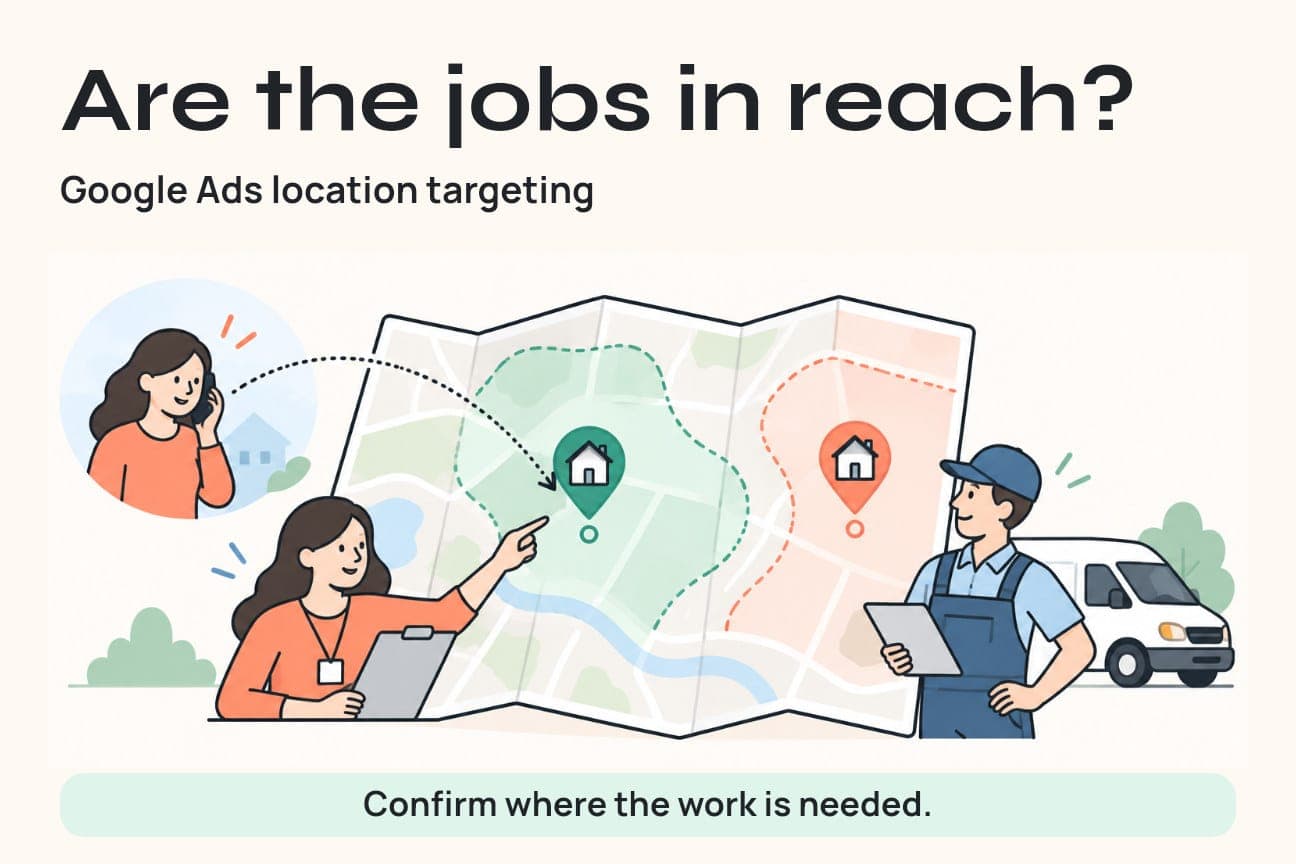
For a trades business, useful Google Ads location targeting starts with the places your crew can actually serve. Check each Search campaign's target list, location option and exclusions. Then confirm the job's city or postal area in your enquiry records. Google's estimated location is a marketing signal, not proof that the requested work is inside your service area.
A homeowner can search while away from home. A property manager can arrange repairs from another city. Someone standing near your workshop can request a job well beyond your dispatch zone. Those situations need different decisions.
This guide gives local service businesses a way to connect campaign geography with real job locations, without cutting off useful customers or treating every form submission as a good lead.
The searcher's location and the job address answer different questions
Your campaign settings help decide who can see an ad. Your service-area rules decide which work your business can accept. Mixing those two decisions creates avoidable mistakes.
A recent Hustle Marketers location-targeting guide explains the distinction between selected places and the options Google uses to match people to them. For a business that sends technicians to customers, there is another check: where is the actual job?
Consider a hypothetical landlord in Toronto arranging a repair at a property in Delta. The searcher is outside a Delta contractor's local market, but the property might be within its service area. Now consider a person in Delta asking for an emergency visit in a city the contractor does not cover. That enquiry can be unsuitable even when the searcher appears local.
Ask where the work is needed before deciding that a lead is out of area. City or postal area is usually enough for the first qualification step. Collect fuller job details later through the business's normal booking process.
Choose a location option that fits the buying process
Google's advanced location options distinguish two targeting choices:
- Presence or interest: People likely to be in or regularly in the targeted area, plus people who have shown interest in it. This is the default.
- Presence: People likely to be in or regularly in the targeted area.
Presence can be a sensible starting point for a tightly local service. However, a business that receives valuable work from remote property owners has a reason to assess broader interest traffic rather than dismiss it automatically.
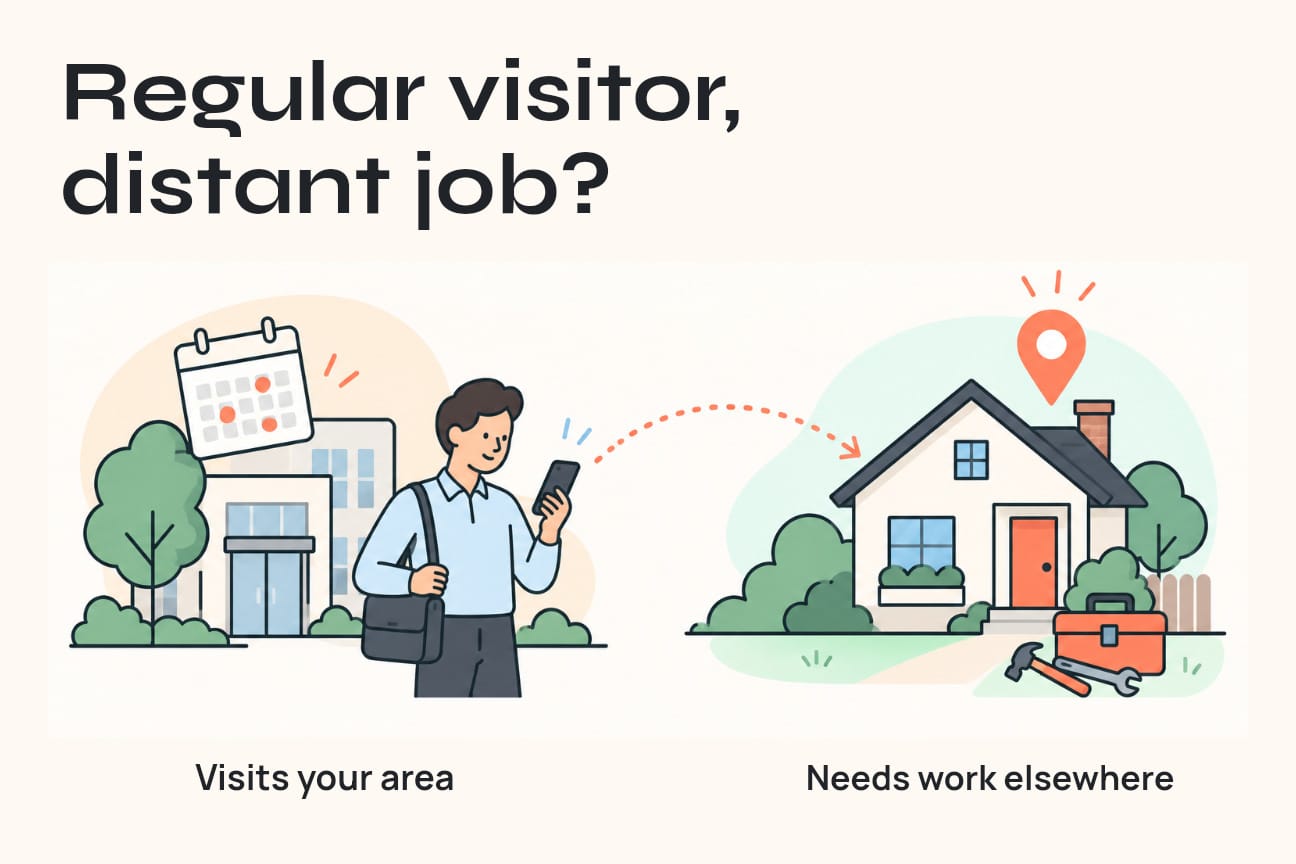
Write down the reason for your choice. “Emergency repairs for people searching locally” and “planned repairs ordered by property managers elsewhere” are different buying situations. You may need different messaging and qualification rules, even if both jobs are completed in the same city.
Do not split campaigns simply to make the map look tidy. Separate them when service needs, budgets or approval decisions differ enough to justify the extra management. Start with an account structure your team can maintain.
Google also warns that its geographic targeting is not perfectly accurate. A setting is a control, not a guarantee of an exact boundary. Continue checking the enquiries that arrive.
Turn your dispatch rules into a usable target list
Before editing the account, create a short service-area register. The person responsible for dispatch should approve it, because the answer depends on operational capacity as well as distance.
Record these fields for each service:
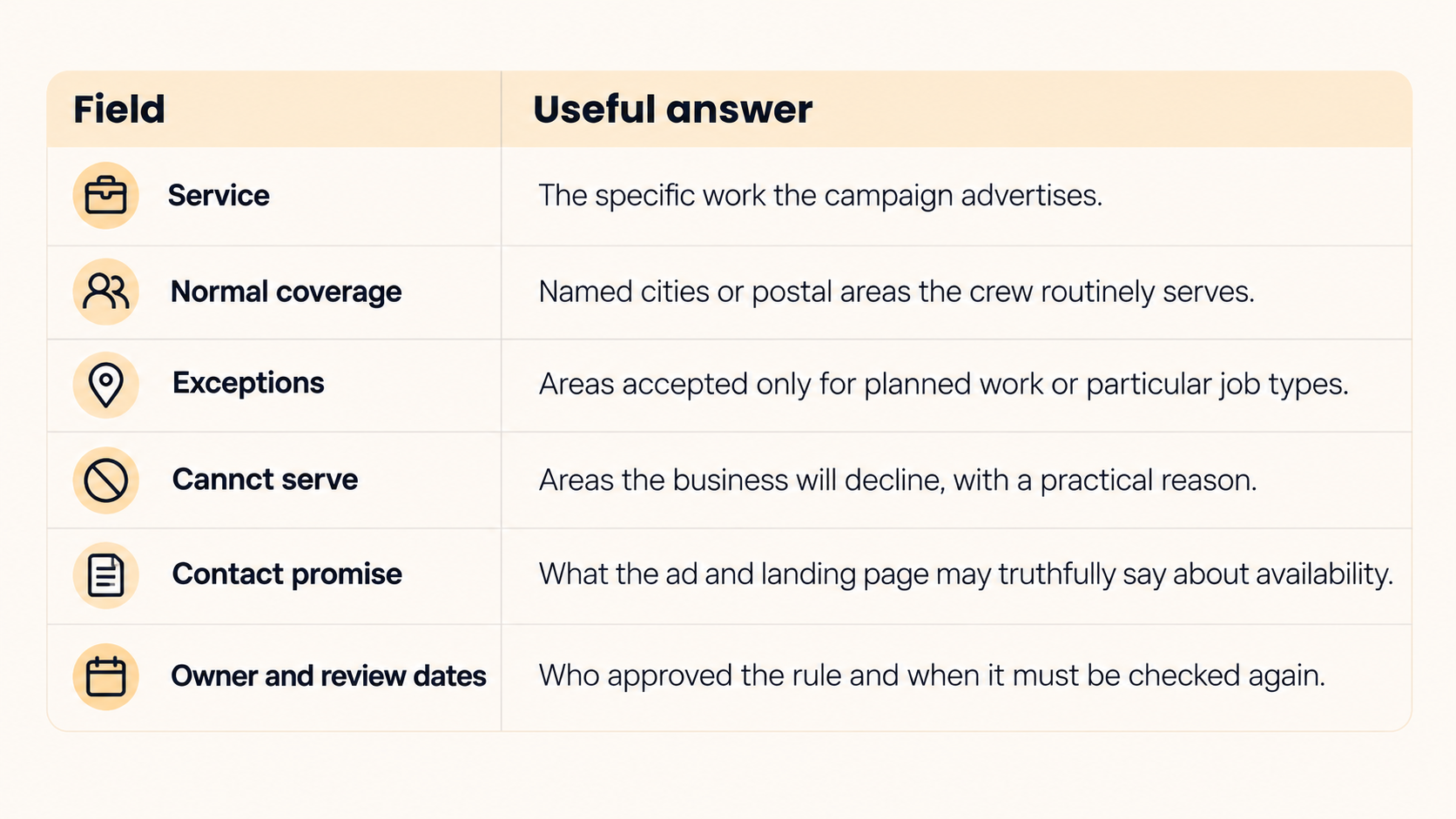
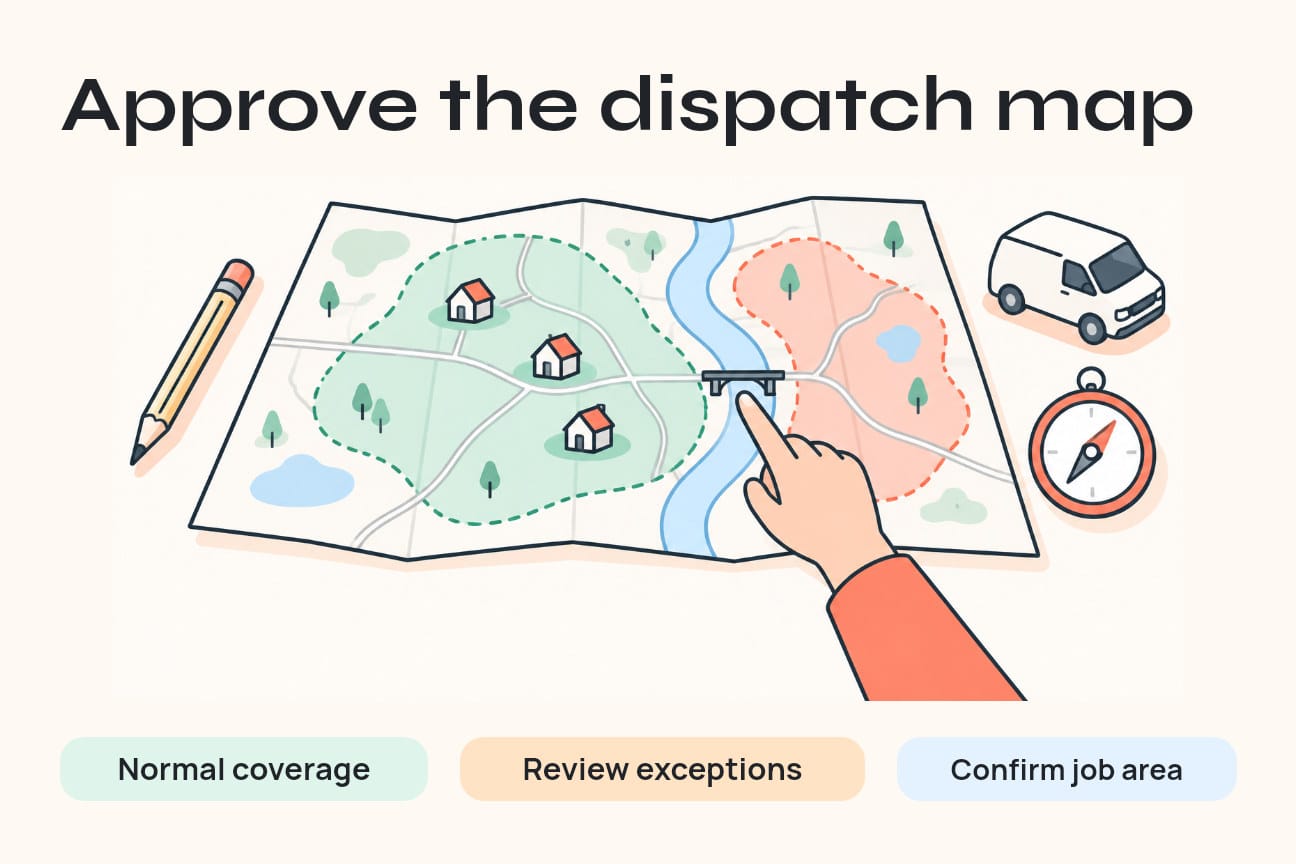
A radius is simple, but a circle cannot account for every bridge, route or dispatch constraint. A list of named areas may be easier to compare with how your team actually books jobs. Google offers different geographic target types, and availability varies by country. Check the places offered in your account instead of assuming a US ZIP-code example works unchanged in Canada.
Review every active Search campaign against the register:
- Open the relevant campaign's settings and review Locations.
- Record the current included areas, excluded areas and location option before changing them.
- Confirm each place is the intended city, province and country. Check the centre and coverage if you use a radius.
- Identify any broader region that includes work you cannot accept.
- Get approval for the proposed change, save it and reopen the settings to confirm the saved values.
Make one controlled correction at a time where practical. Changing geography, budget, keywords and landing pages together makes it harder to understand what affected the next set of enquiries.
Diagnose the mismatch before adding exclusions
A poor enquiry is not always a geographic problem. It may involve the wrong service, no available appointment, a duplicate request or an unknown job location.
Use this decision aid during your weekly account review:
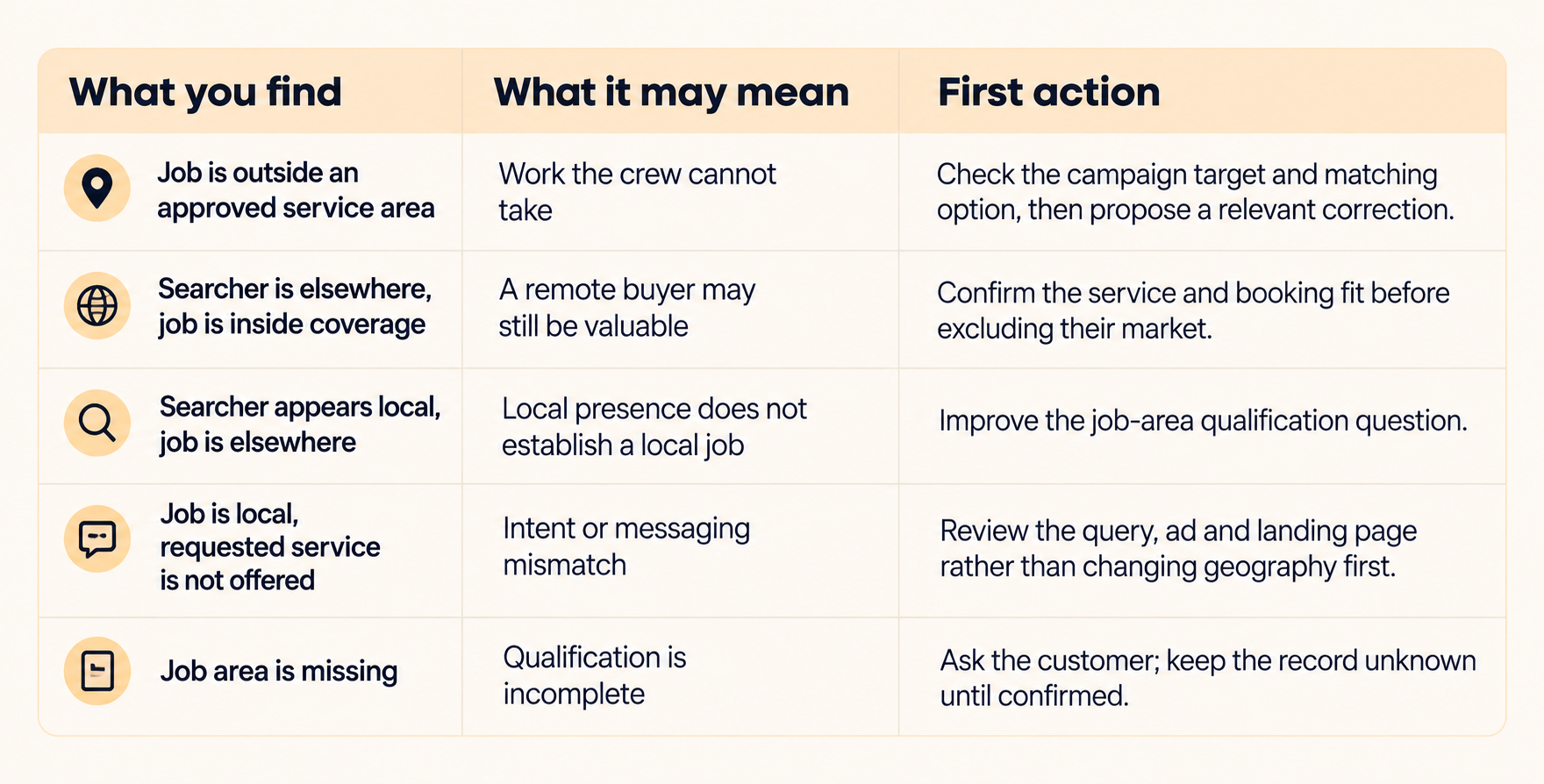
For exclusions, check the hierarchy carefully. Google's exclusion guidance says an excluded area takes priority over an included one. Excluding a province while targeting a city within it creates a conflict, not a precise service boundary.
Keep the decision focused. You do not need a huge list of places you never intended to target. You need a documented reason for any area you remove, and a check that the exclusion does not block work you still want.
Connect the location report with an enquiry register
Start with two records that serve different purposes.
Google's Matched locations report shows locations that matched ads. These may represent physical location or interest. The report is aggregated; it does not give you a verified address for each person who clicked.
Your private enquiry register should capture the campaign source when it can be established, the requested service, confirmed job area and outcome. Use a simple label such as serviceable, outside coverage or unknown. Do not infer a precise customer location from a report row or a phone number's area code.
A small workflow your team can maintain
Trigger: Review new enquiries daily and campaign geography weekly.
Input: The approved service-area register, current campaign settings, an aggregate location report and enquiries with a reliable source reference.
Action: A coordinator confirms the job area. A supported workflow can flag a confirmed mismatch and prepare a review note for the account manager. The note includes the affected service, the current rule and the proposed action.
Approval: The account manager checks the evidence and decides whether to change targeting, revise messaging or improve qualification. The dispatch owner confirms whether the area can be served.
Failure path: If an address is missing, a source link fails or a record cannot be matched reliably, keep it in an unknown queue. Ask for clarification or inspect the original enquiry. Do not silently classify it as waste, attach it to the wrong campaign or push a geographic change automatically.
Confirmation: Reopen the saved campaign settings, record the change date and reason, and review the next comparable set of enquiries.
Keep reporting proportionate. City or postal area and a lead reference are enough for most geography reviews. Limit access to the private records and leave contact details out of the marketing summary.
A worked example that keeps unknowns visible
The following is an illustrative example, not a JC Labs client result or a Google benchmark.
Suppose a local repair campaign produces 20 enquiries during a review period:
- The business confirms a job area for 16.
- Of those 16, 13 are in the approved service area and three are outside it.
- Four enquiries still have an unknown job area.
- Nine of the 13 serviceable enquiries fit the service and appointment requirements.
- Four of those nine become booked jobs.
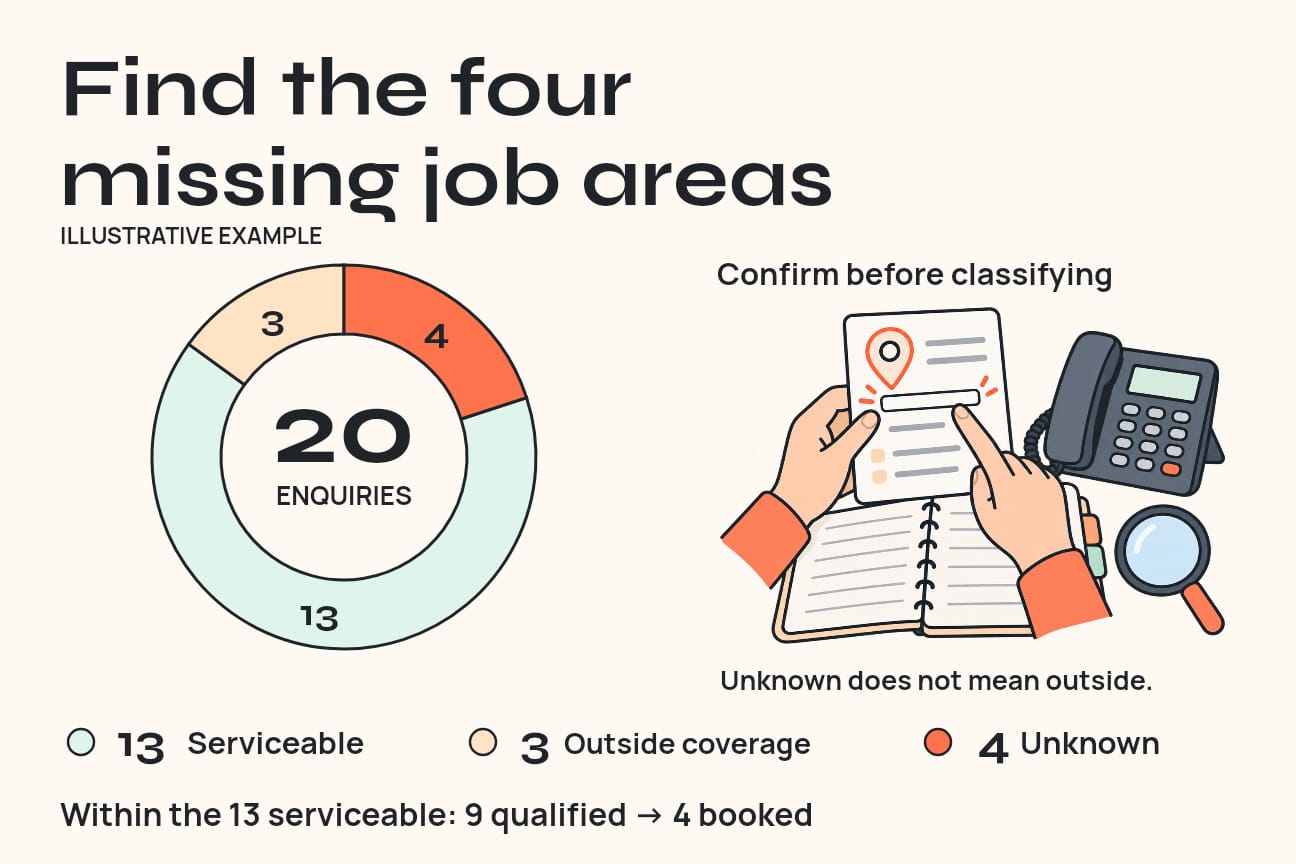
The confirmed serviceable share is 13 ÷ 20 = 65% of all enquiries. The job-area confirmation rate is 16 ÷ 20 = 80%. The outside-coverage share among records with a known job area is 3 ÷ 16 = 18.75%. Each percentage has a different denominator, so label it.
Calling all seven enquiries outside the serviceable group “wrong-area leads” would be inaccurate: four are still unknown. Likewise, the nine qualified enquiries and four bookings measure later stages, not the precision of Google's location estimate.
The first actions are to resolve the four unknown locations and examine the three confirmed outside-coverage cases. Check which service and campaign produced them before choosing an exclusion.
Measure useful work after a change
Use the same campaign scope and comparable periods before and after a correction. Allow time for enquiries to be qualified and bookings to be confirmed. A one-day change in clicks is not enough to judge the result.
Track:
- Job-area confirmation rate, including the unknown count.
- Confirmed serviceable enquiries as a share of all enquiries.
- Outside-coverage reasons by service, rather than one account-wide label.
- Qualified enquiries and booked jobs, with a clear definition for each.
- Spend and enquiry volume alongside those outcomes.
If spend is known, calculate cost per confirmed serviceable enquiry using spend divided by that enquiry count. Do not assign a zero cost when spend is unavailable, or calculate a cost per booking when no bookings are confirmed.
Google notes that geographic reporting can differ from other data sources, and some local rows do not add up to campaign totals. Use the campaign total as a separate check rather than forcing a city breakdown to balance.
A drop in reach can be acceptable if the remaining work fits the business better. It can also remove valuable customers. Review serviceable volume, qualification and bookings together before calling a tighter map an improvement.
Frequently asked questions
Why do my Google Ads get enquiries from outside my area?
Check the location option and selected areas, then ask where the job is needed. Broader interest matching can reach remote buyers. A local searcher can also request work elsewhere. Diagnose the actual request before deciding what to change.
Does Presence stop every out-of-area click?
No. It includes people regularly in the target area, and Google's location signals are estimates. Keep a job-area qualification check rather than relying on the setting alone.
Should I use a radius or named cities?
Choose the method that best represents your approved coverage. Named areas can suit dispatch rules with exceptions. A radius can suit a simple catchment, but inspect what it includes. Google's minimum radius is 1 km, and very small targets may deliver intermittently.
Can I use the Matched locations report as customer-address evidence?
No. It can include a location of interest as well as a physical location. Confirm the job area through the enquiry. Keep unknown locations visible instead of filling gaps with a guess.
Does changing my Business Profile service area fix Search campaign targeting?
Your Search campaign has its own location settings. Audit them in Google Ads. Treat the profile's service-area information as a consistency check, not proof that the campaign is configured correctly.
Start with one campaign and a clear coverage rule
Choose one Search campaign. Have the dispatch owner approve its service-area register, confirm the current location settings and review a comparable set of enquiries with known job areas. That gives you a specific change to discuss and a way to judge its effect.
If the campaign map, enquiry records and crew coverage are being managed separately, JC Labs' Google Ads management connects campaign structure, call and form tracking, and lead-quality review. The ads audit on that page is a practical next step for checking the account against the work you can actually take.
Keep the map useful by keeping the business rules clear. The enquiry becomes valuable when the job, service and available team fit together.