
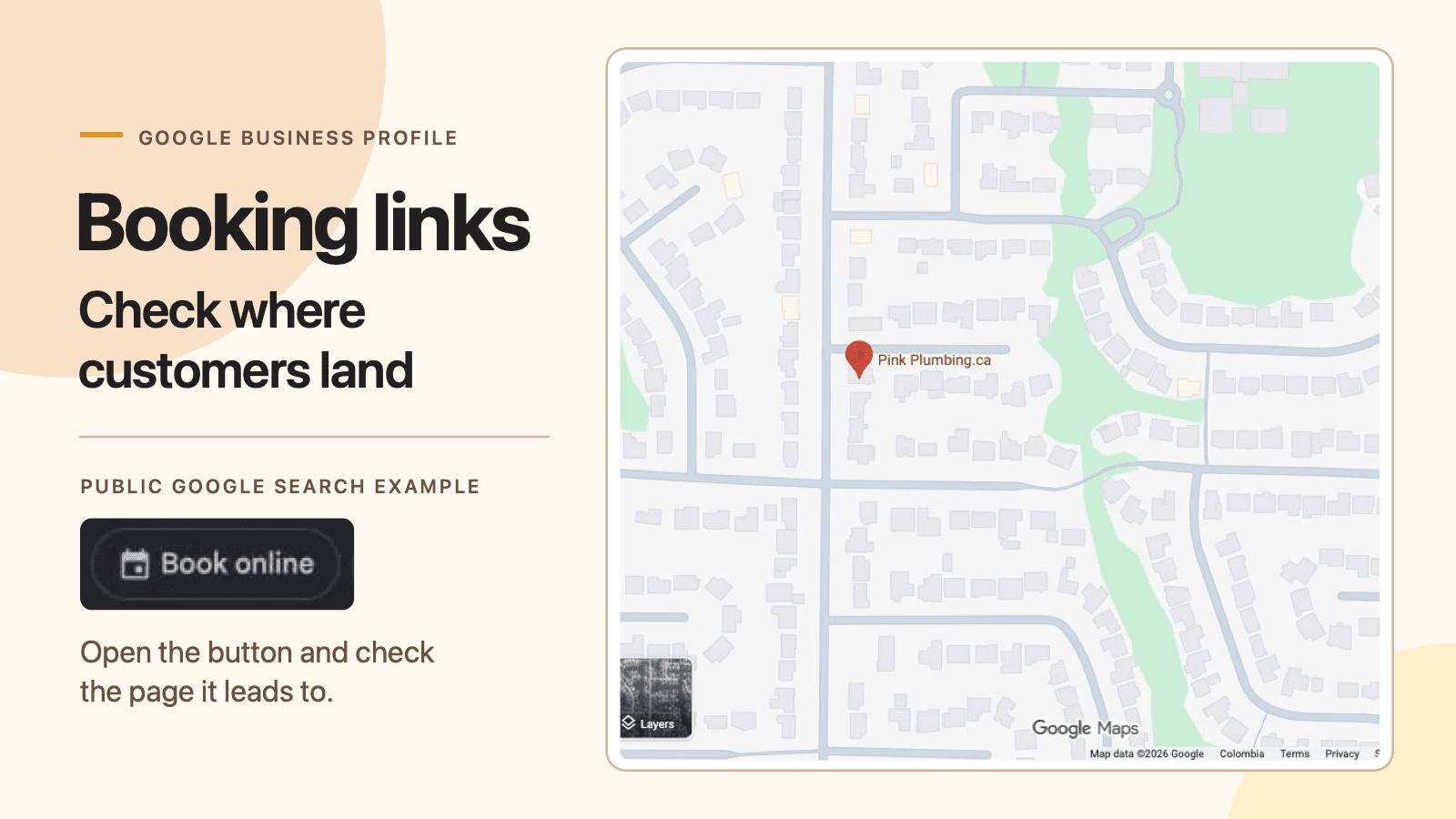
If your Google Business Profile shows a booking button, open it on your phone and check where it takes you. The right destination should let a customer book the service at the right location. If the link is broken or unfamiliar, find out who supplied it before changing anything.
A booking button can look fine while the page behind it lists an old service or sends customers to the wrong place. If your team takes enquiries before confirming a job, make that next step clear on the destination page.
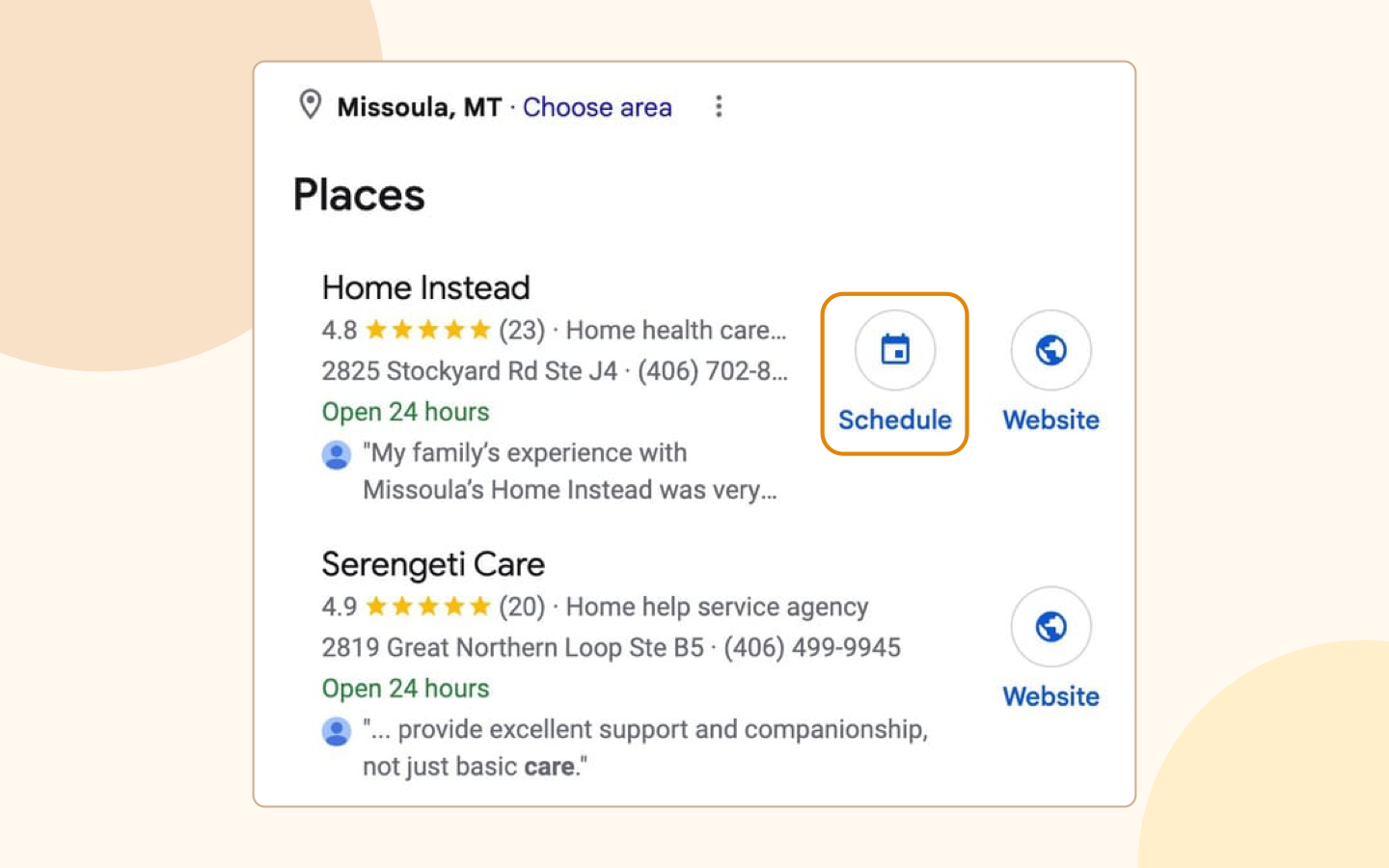
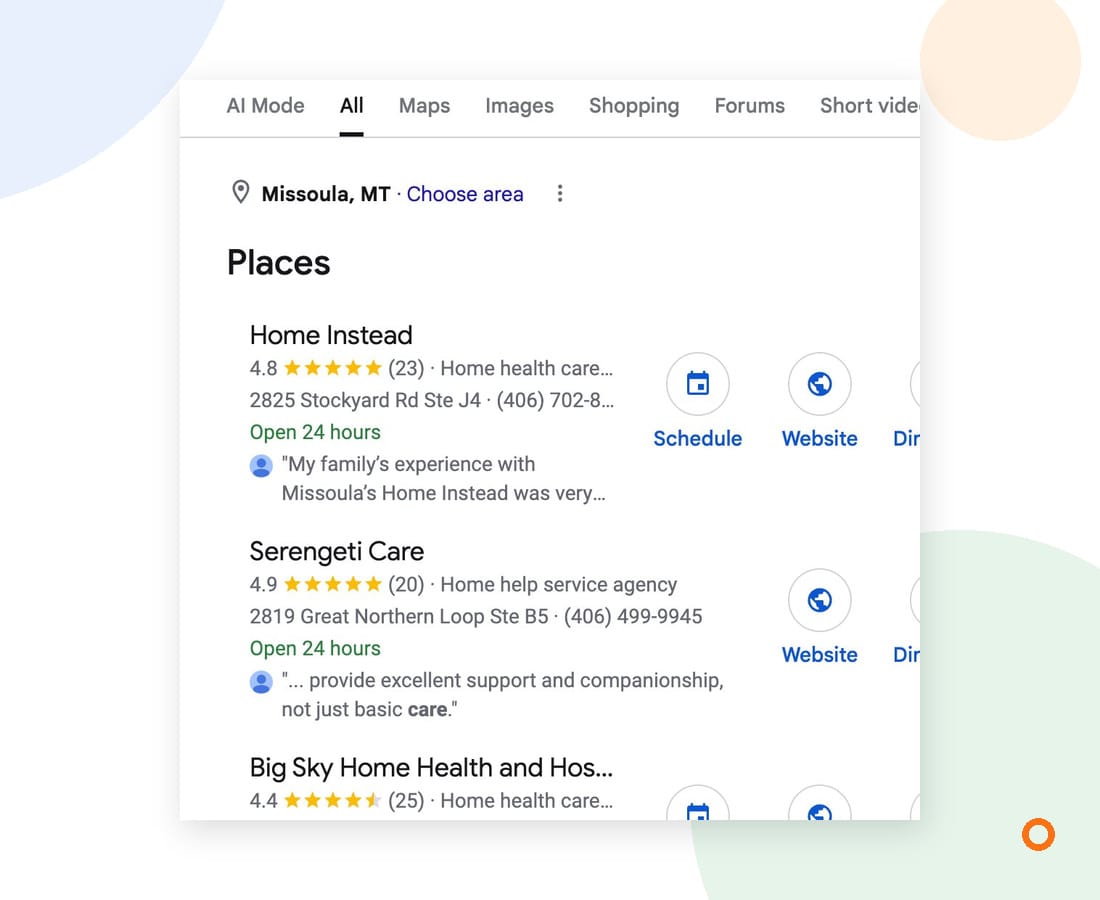
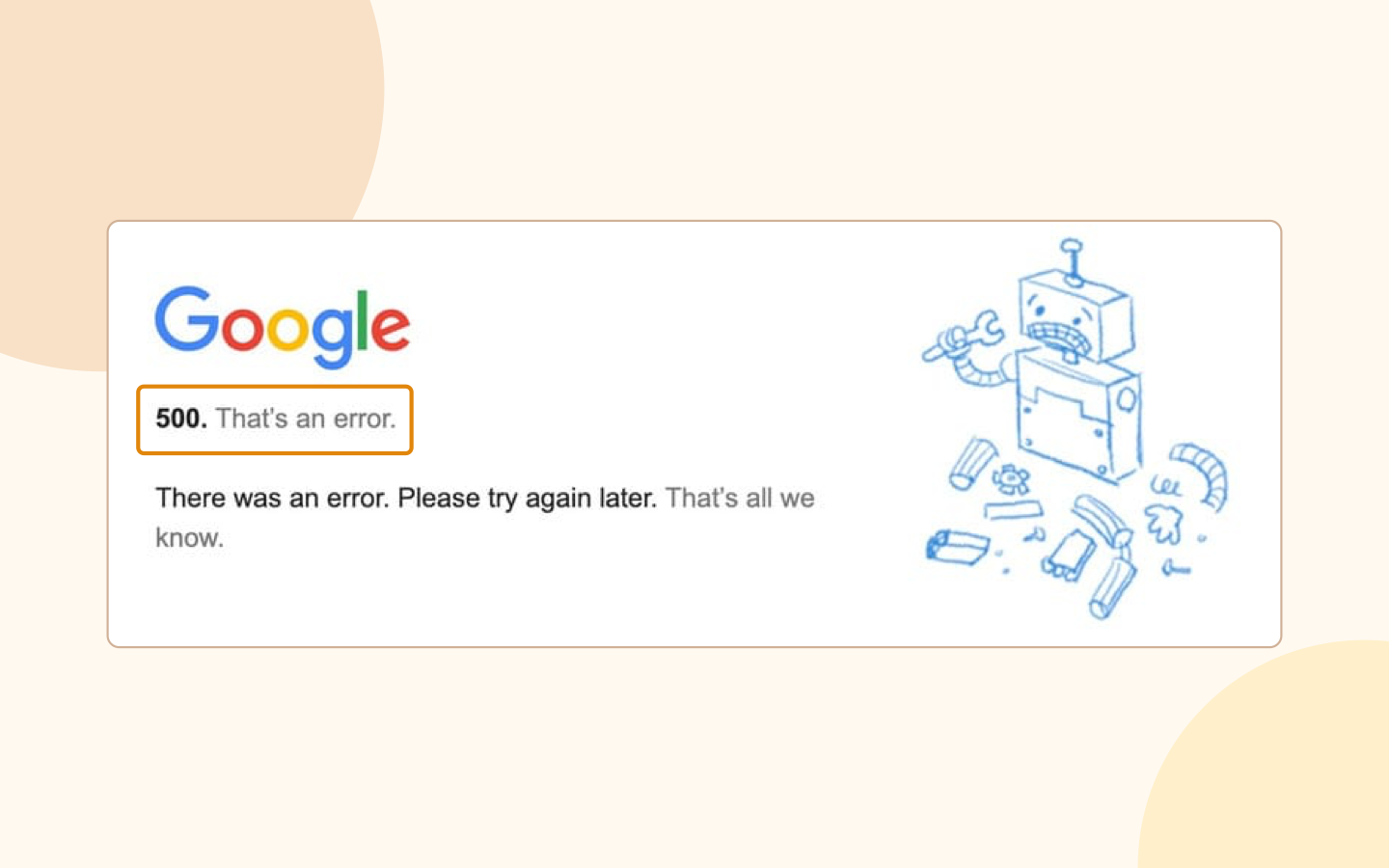
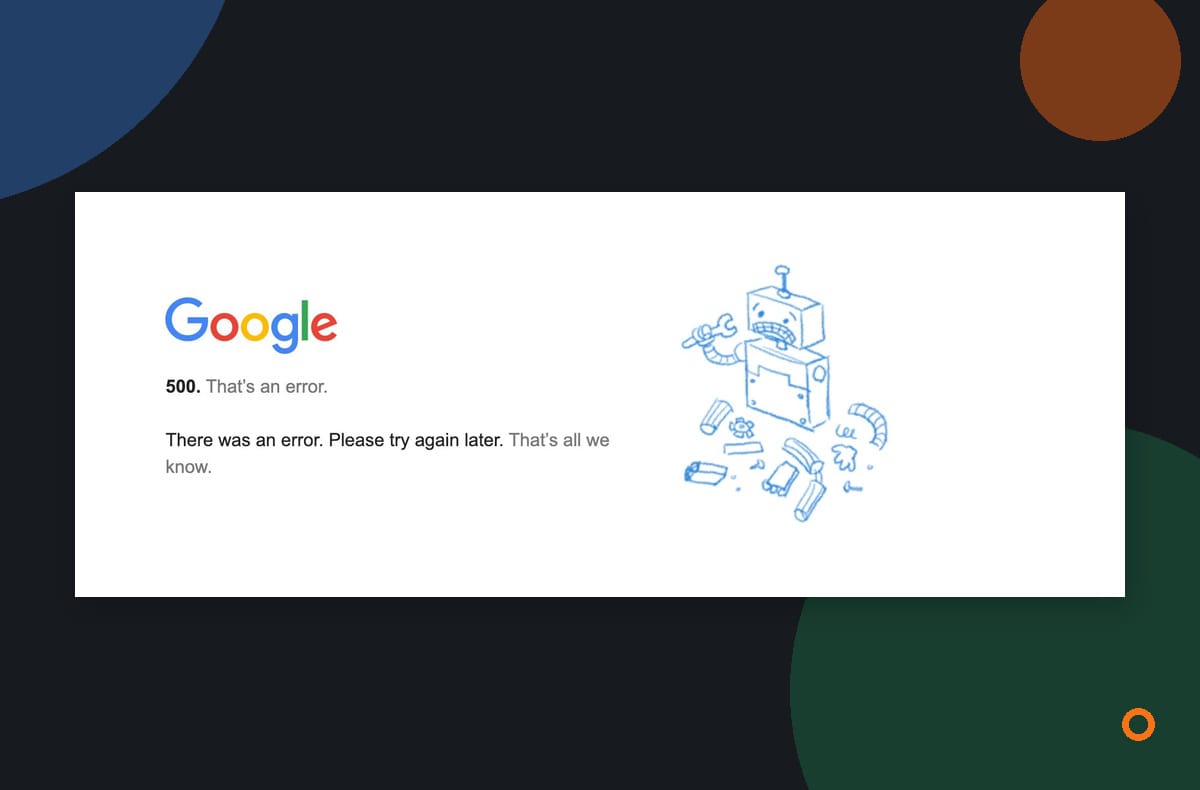
On November 9, Search Engine Roundtable reported examples of booking buttons appearing on some profiles, including a reported home-service example. One person also reported a Google 500 error. The reports are worth checking against your own profile. They do not establish that Google changed every profile or that Canadian businesses experienced the same error.
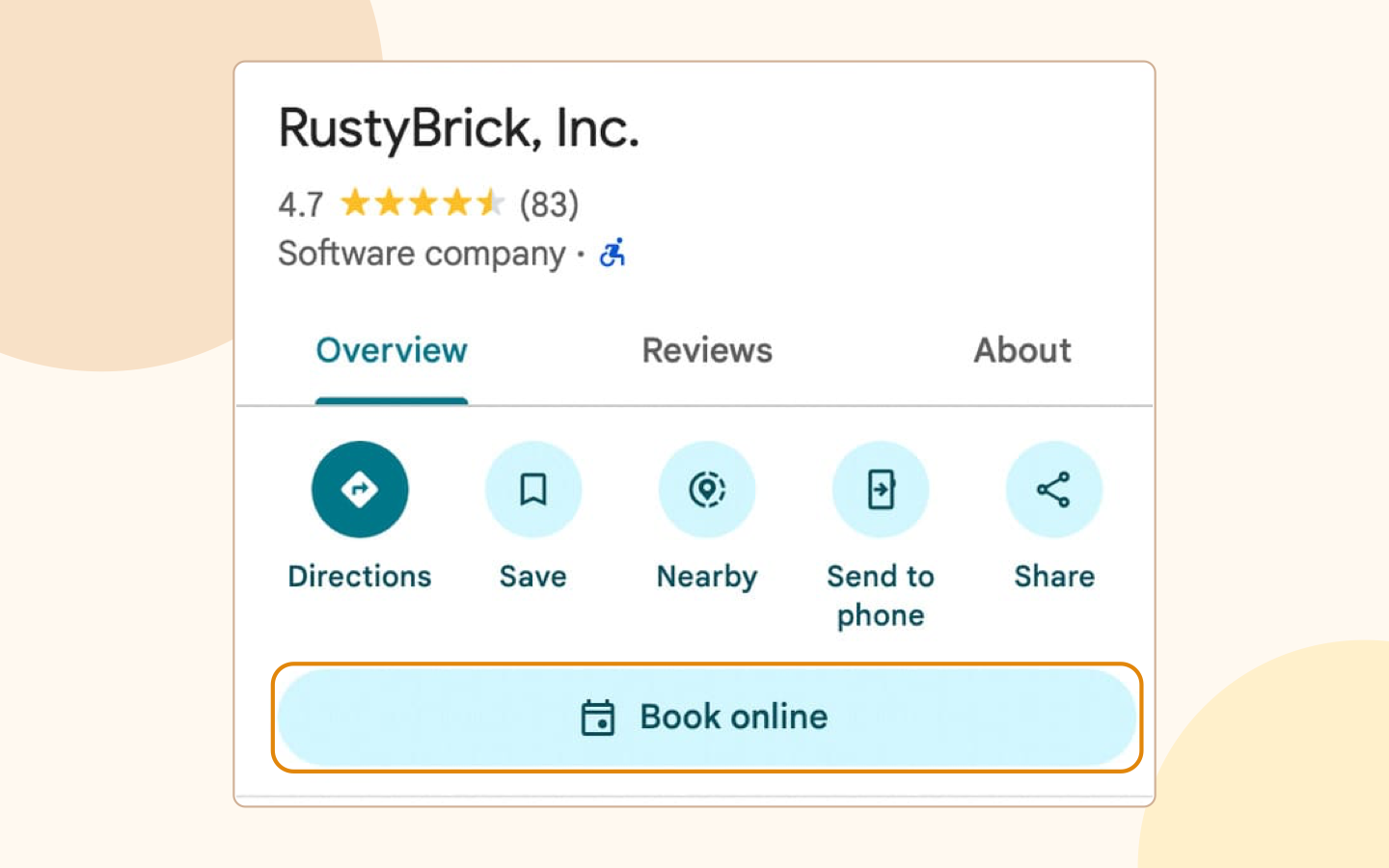
Start with the link customers can see
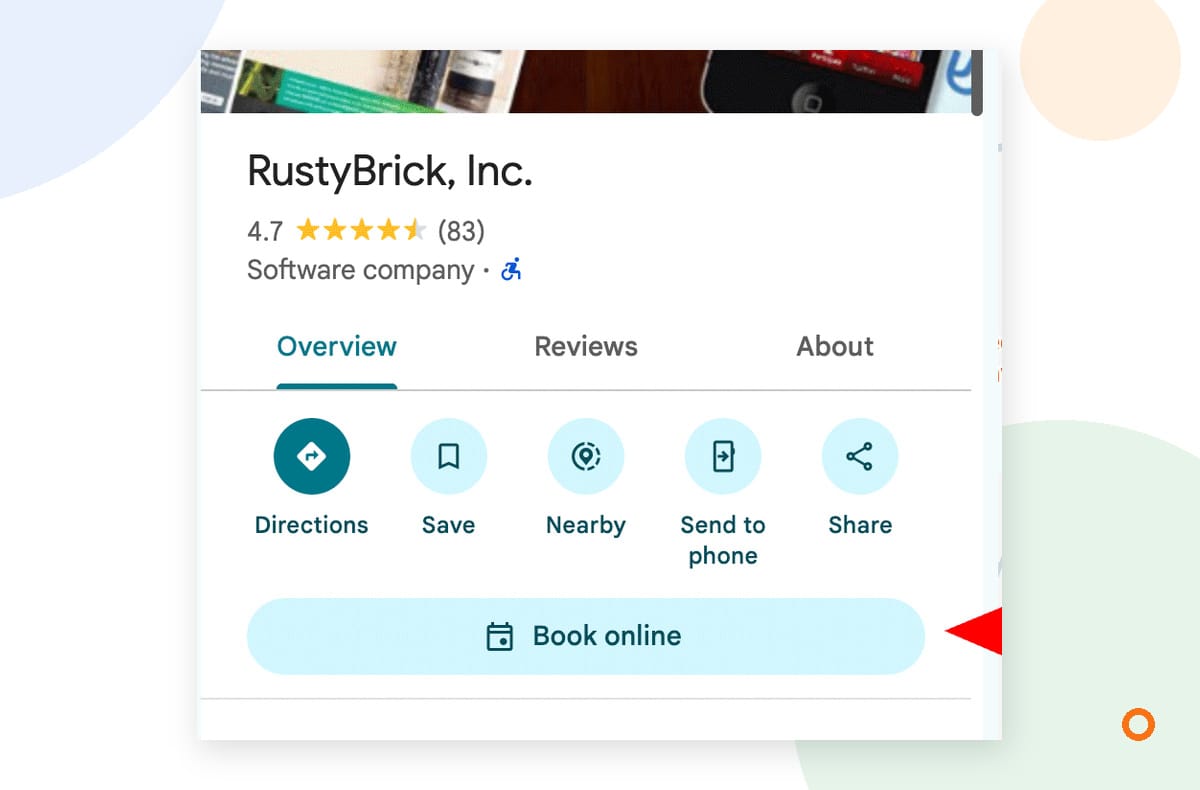
Search for your business in Google Search and Maps, then look for a booking or scheduling option. If one appears, open it on a phone as a customer would. Also check the route on a desktop if your team uses one to manage enquiries.
Follow the whole route, not just the first page. Check that it names your business and the right location, offers a service you still provide, and makes the next step clear. Stop before submitting an appointment unless your team has arranged a test.
Google says business links have eligibility and destination rules. Availability can depend on the business, category and region. A verified profile is required to add a business link, and Google says edits must be approved before publication.
Check who supplied the link
The fix depends on who supplied the link. Google says some appointment and reservation links appear automatically through third-party partners, so check the provider before changing anything.
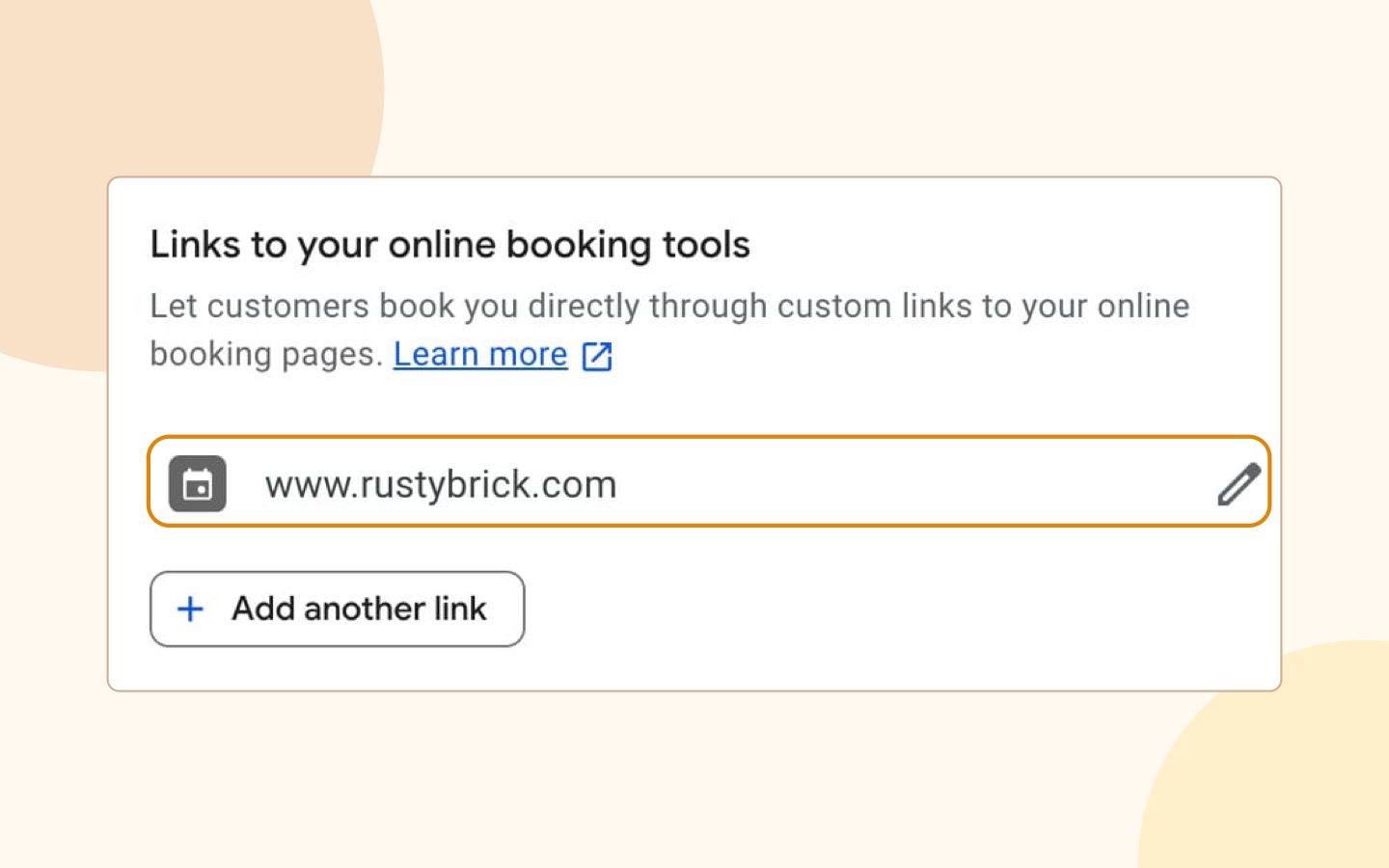
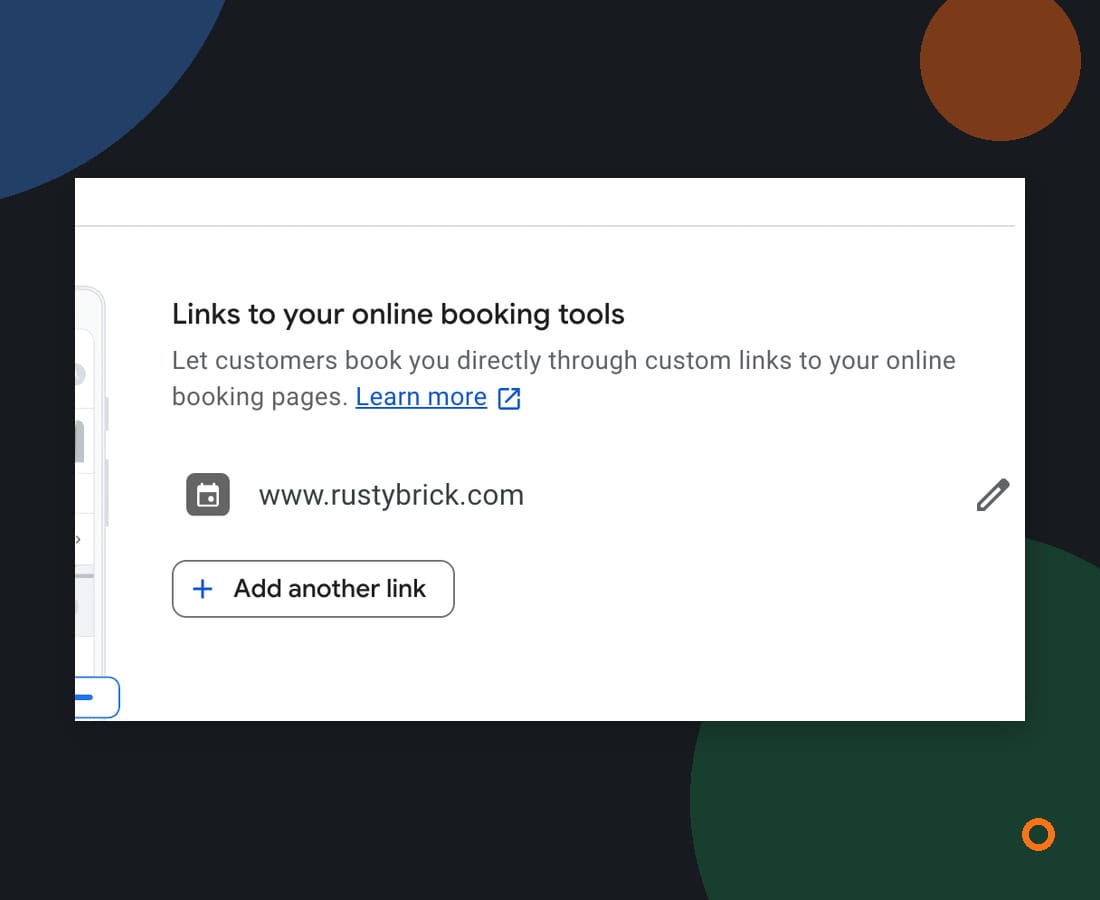
While signed in to the Google account that manages your profile, open the profile and look for Booking. Google’s local business links guidance describes managing links through Booking in Search or through Edit profile in Maps. The options you see can vary by account and category.
Compare the URL and provider name with the scheduling tools your business actually uses. Ask whoever manages your website or scheduling account if you do not recognize it. Keep a note of the destination before editing so you can explain the problem to the right person.
A hypothetical HVAC contractor might find that its booking page works but still lists a service it no longer offers. The person managing the page can correct that. A link from a former scheduling provider needs a different conversation.
Test the page before changing settings
Use this short check with the person who handles bookings:
- Business and location. Does the page identify the right company and, if you have several locations, the right location?
- Service and coverage. Can the customer choose work you currently offer in an area you serve?
- Booking action. Can the customer complete the action promised by the button? Check the steps without sending an unwanted appointment.
- Mobile experience. Does the page load and remain usable on a phone? Note an error message or unexpected redirect.
- Handoff. Does your team know which booking system receives the appointment and who checks it?
Record the URL, the date checked, what happened and the person responsible for the next step. If the page fails, capture the error and try again later. One reported error does not establish a system-wide problem.
Fix your link or contact the provider
If your business supplied the link, review it in your profile’s Booking settings and update the destination through the available controls. Google documents adding a link and, when more than one is present, setting a preferred link. Check the public profile again after any edit is approved.
If a third-party booking, appointment or reservation provider supplied the link, Google’s current guidance says you cannot manually delete that provider directly from Business Profile settings. Contact the provider through its opt-out link, support form or account portal. Google says partners must process an opt-out request within five business days; if the provider does not remove the link in that time, its help page provides a route to report a third-party violation.
Keep the request date and any confirmation from the provider. Setting another link as preferred can help customers find the intended option where that control is available, but it is not the same as confirming the unwanted provider link has been removed.
Choose a destination that matches the button
Google says a local business link must lead to a dedicated page for the business and allow the customer to complete the designated action. For a business with multiple locations, the action link should lead to the specific location. Google also lists social media, messaging links, app-store links and link shorteners as unsuitable business links.
That is why I would not use an ordinary contact form as a shortcut for a booking button if the form only sends an enquiry. Use a destination that supports the booking action you are offering, or review your options with the person who manages the profile and booking system. A request for a quote and a confirmed appointment are different things, so make the next step clear to the customer.
Canadian businesses can use supported booking integrations, although options depend on the profile and provider. For example, ServiceTitan says its Reserve with Google integration is available to Canadian and US companies. That does not establish availability for every trade or account.
Keep a short record and check again
Add the booking link to your regular profile review, especially after changing your website, services, locations or scheduling provider. A simple record of the destination, owner and last check makes it easier to spot an old link before a customer finds it.
If you would like a hand reviewing the path from your profile to a customer enquiry or booking, talk with us about Google Business Profile management. We can look at the setup with you and identify the next practical change.